
Panorama is a diagnostic and support tool for Canvas content. It helps identify accessibility issues, remediate some issues directly inline, and offers alternative formats for students. However, it does not automatically fix all problems. Think of it as your accessibility assistant, not your replacement. Not all issues can be resolved in Panorama, so please reference this website for a list of accessibility issues that can be resolved with Panorama. Note that we currently only have access to “Full-Circle” remediation.
To truly create inclusive learning environments, faculty must first understand the principles of digital accessibility. This page will help you get started, set expectations, and use Panorama effectively as part of a broader accessibility strategy.
Start with Accessibility: Learn Before You Launch
Before diving into Panorama, it’s essential to understand what Digital Accessibility is. These foundational courses offered by the university will help you understand how to create accessible content from the start. Panorama can then help you enhance and monitor that content. Both of these courses are asynchronous through Carolina Talent.
FAQs
Do you have a common question or concern that isn’t covered on this page? Let us know and we will add it here!

Accessibility is everyone’s responsibility. Each unit within the university must ensure that their digital materials meet the minimum accessibility requirements as required by ADA and Section 508. This includes making sure that websites, applications, IT services, online content, digital documents, presentations, and online learning materials are accessible.
The Panorama website has a list of content specific accessibility issues that can be resolved with Panorama.
Is scanned:
- Content added directly by the instructor such as:
- Document files (Word, PPT, PDF, etc.)
- Content written directly in the LMS.
- Core Canvas areas like Discussions, Modules, and Announcements.
Is NOT scanned:
- Course Reserves
- Content injected into a course by another plugin or tool.
- Third-party tools
- Files that live outside of Canvas like Sharepoint.
- Student created content
- Quiz questions
- SCORM files are NOT scanned despite them defaulting to a perfect accessibility score. This is on the Panorama roadmap for later in 2025/2026.
The below issues are easy to check for, and usually easy to resolve as a first round of accessibility checks.
- Headings: Use headings to break content into chunks.
- Consistent Layout: Consistency of page design helps keep users oriented and sets expectations for interactive elements.
- Keep it Text: Avoid images with baked-in text.
- Text size and spacing: Use default or larger text size and line height. Smaller sizes can make letters blur together.
- Readability: Use plain language instead of jargon or idioms to support understanding by a wide audience.
- Descriptive Link Text: Links need to describe their location in concise terms and be underlined.
- Color Contrast: Ensure text has a high contrast against the background color.
- Alternative Text: Images must have adequate alternative text that describes their purpose and content in context.
- Captions and Transcripts: Provide captions for all video content and transcripts for audio content.
- Ask the ECTL: Ask us if you have any questions!
By April 2026, all university digital content must be accessible or identified for remediation to meet ADA Title II and UW accessibility standards.
Departments can set their own timelines, and we strongly suggest starting with a content inventory to support setting priorities. By Spring 2026, content updates should be underway to meet WCAG 2.2 AA. Start early and use ECTL resources to support your progress. April 2026 is a key milestone in our ongoing commitment to accessibility.
There are various automatic and manual tools one can use, many specific to the content platform. For example, Microsoft Word, Excel, and PowerPoint have built in accessibility checkers that work similarly to spell check. They catch about 30% of errors. Manual checking is most effective and can be done by reviewing components using a keyboard or screen reader.
For specific questions or a refresher, bring your file to a relevant Workshop, or email us with questions. You may also reach out to a consultant during their office hours for guidance.
Here are our suggestions for who should take which trainings:
- Everyone: Digital Accessibility Awareness, Document Remediation, Zoom Accessibility
- Faculty, Instructors, and Instructional Designers: Digital Accessibility in Course Design
- Web developers and content creators: Web Accessibility Basics
- Communications Teams: Social Media Accessibility
Want something specific that isn’t listed above? Email us and we can chat about specialized trainings for teams and groups!
How will students interact with Panorama?
- Find the Panorama Icon

Next to course files (like PDFs or Word docs), you’ll see a small icon. That’s the Panorama icon. - Click to See Alternative Format Options
Click the icon to open a list of alternative formats—like audio, HTML, ePub, or tagged PDF. - Choose and Download
Pick the format that works best for you. It will either download or open in a new tab after a short processing.
A Few Things to Keep in Mind
- Original files are still available and unchanged. Alternative formats are optional and meant to make content easier to read, listen to, or use with assistive technology.
- Not all formats may be perfect. Complex documents (e.g., with tables, formulas, or scanned images) might not convert flawlessly.
- If a format doesn’t work well:
- Try a different one.
- Use the original file.
Information on the alternative formats for students
Panorama Guides and Tips
More guides and tips will be coming as we develop them!
Where is Panorama in Canvas?
You will see Panorama icons across many elements of your course content such as pages and files. You can click on this icon anywhere you see it to open the Alternative Formats menu for that item.


From the course menu you can access the Course Report and other course specific Panorama settings.
Scores
Panorama assigns accessibility scores to your documents. Students do NOT see these scores. They only see the alternative formats options.
These scores:
- Reflect how accessible your content is.
- Help you prioritize remediation.
- Are not a grade, but a guide.
Goal: Aim for a high score, but focus on meaningful accessibility, ensuring all students can access and engage with your content.
Icons
 Hexagon, Green: 85% or more
 Triangle, Yellow: 60% – 85%
 Octagon, Red: 0% to 59%
 Timer, Purple: Pending or unscanned
 Circle Backslash, Grey: not available (the document has not been scanned or cannot
produce an accessibility score)
Circle Backslash, Grey: not available (the document has not been scanned or cannot
produce an accessibility score)- Circle Figure, Blue: Icon for students to view alternative formats
The Alternative Formats menu allows both instructors and students to access a variety of different formats to meet different learning styles.
Clicking the accessibility icon next to any file, page, or document in Panorama will open the Alternative Formats Menu for that item.
Alternative formats can be turned off on an individual piece of content from the option at the bottom of this menu. They can also be turned off for the entire course through the Panorama menu > Configuration > General Settings > Course Settings > Alternative Formats Menu Options. The ECTL advises against disabling alternative formats across an entire course as it removes this wonderful feature for students who may need them. However, disabling certain types (like Math) when not needed is fine.
- Source File: View the document in its original format, suitable for download viewing.
- PDF: View the document in PDF format, suitable for both online and download viewing.
- Text File: View the document in a pure text format without any formatting styles, suitable for both online and download viewing.
- Immersive Reader: Allows for customization to text preferences, grammar options, and reading preferences while following along with the audio playback.
- Gradient Reader: Enhances visual word recognition when reading by providing a guiding color gradient.
- EPUB: View the document in the ebook format, suitable for any ebook reader application.
- Braille: View the document in the braille grade 2 format, suitable for download viewing (a braille reader is required).
- Audio Podcast: Audio playback for documents, suitable for both online and download listening.
- Enhanced HTML: HTML documents can be displayed in a dedicated tab to customize the document’s appearance using the Website Accessibility tool.
- OCR: Convert images with text into machine-encoded text that can be searched and read by screen readers.
- Math Formats: Convert documents containing math equations into LaTeX, Math Text (i.e., numbers and symbols to words), MP3 files, or MathML.
- Language Translation: Translate a document automatically to over 100 languages, which can be downloaded.

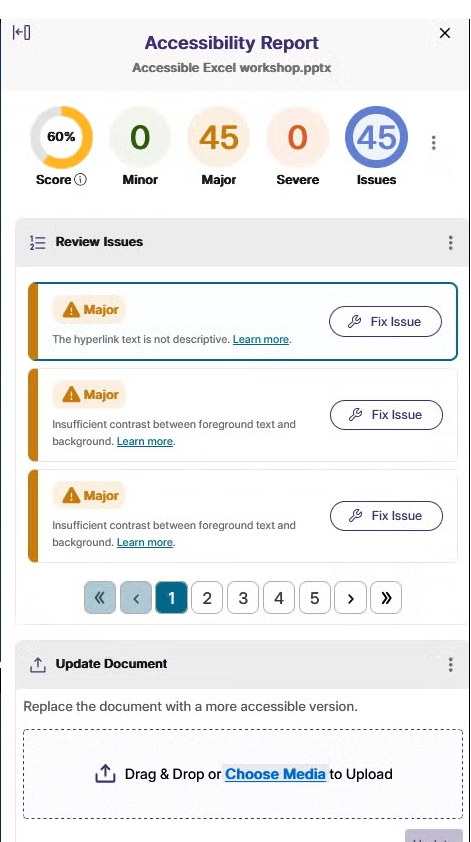
Accessibility Reports are where you will find information broken into four major sections.
- Content preview that shows where issues are located.
- Overall score, number of issues, and types of issues.
- Details about issues that you click through to begin fixing.
- An area where you can update the document and revert to past versions.

The Course Report can be found via the Panorama link in the Canvas course menu.
This report gives you an overall glimpse of your scores, progress over time, and scores for specific types of content.

The Course and User Settings can be found via the Panorama link in the Canvas course menu then selecting General Settings from the left Panorama menu.

The Course Settings allow the instructor a variety of control options for each specific course.
Alternative formats can be disabled at a course level. The ECTL advises against disabling alternative formats across a whole course as it removes this wonderful feature for students who may need them. However, disabling certain types (like Math) when not needed is fine.

The User Settings allows individual users some control over the content they see from Panorama. This allows users to turn off Panorama icons if they wish.

The DocHub (found via the Panorama link in the Canvas course menu, and at the very top of the Panorama settings menu) us the staging area for you to test Panorama remediation on documents without impacting your course score.
Link to Panorama’s Support Resources
Quick tips and tricks!
- Use DocHub to stage/test documents so they do not count for or against your course scores
- Let students know about alternative formats – syllabus is a great place!
- Start with most used or most often referenced content
- Tech issues? Contact Panorama support via the Feedback button on the right side of the Panorama window.
- Not sure where to start? Contact the ECTL!

The University of Wyoming has earned its Research Level 1 (R1) status from the Carnegie Classification of Institutions of Higher Education, placing Wyoming's only four-year university with the top research universities in the United States.