
Resources

2025 Performance Evaluation Training - This hour-long training session covers the new, updated 2025 staff and administrative performance evaluation.
Submitting Goals in WyoCloud - This training session covers how to submit goals for staff and administrative performance evaluations in WyoCloud.
OPEN A SUPPORT TICKET
The University of Wyoming Service Desk is here to help you with your technology needs. From computer support to telecom, we have solutions for you.
For support on performance evaluation issues please open a customer support ticket.
Human Resources has developed the Rating Recommendation Document to help standardize the WyoCloud performance evaluation ratings across campus.
Frequently Asked Questions

Yes, employees can receive a 5 rating for far exceeding departmental expectations. Please review the document for further help with determining well calibrated scores.
Human Resources does not recommend that supervisors alter the 50% split between competencies and goals. However, supervisors are encouraged to adjust the percentages for individual goals and individual competencies.
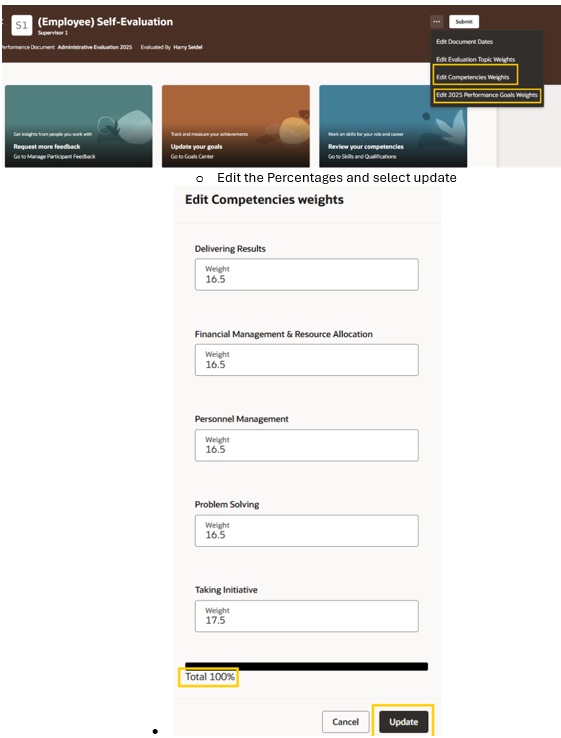
With the Redwood updates, weights must be set for both competencies and goals. Employees initiate the first step and will need to set weights for both the competencies and goals. During the second step, supervisors may adjust weights as needed.
Select 'Edit Competencies Weights' or 'Edit 2025 Performance Goals Weights'.
Evaluations are created for all employees who are hired on or before October 1st. If your employee was hired after October 1st, HR recommends that you meet with your employee during the evaluation period to discuss progress in their role, but an evaluation is not required.
Employees who have had a mid-year change of supervision should have the previous supervisor added to their evaluation as a collaborator so that both the previous and current supervisor can evaluate the employee for the entire annual review period.
Employees who have a change of supervision in December or January should have their evaluations transferred back to the previous supervisor for completion.
With the Redwood update, competencies cannot be added or removed from evaluations.
- Adjustments made under 'Review your Competencies' will not affect the evaluations.
- If a competency appears twice (e.g., Communication), please set one to 0% weight.
- If a competency seems missing, the topic may be added as a goal so the employee can still be evaluated.
There was an error in the description associated with the Communication competency
for administrative evaluations. When selecting 'Show Competency' info the description
will display language specific to the Athletics Department. Please disregard that
text.
When rating for the Communication competency on Administrative Evaluations, use the
following description:
Expressing ideas effectively in individual and group situations, including nonverbal
communication; adjusting language or terminology to the characteristics and needs
of the audience.
Selecting the 'Review your Competencies' button displays an employee’s 'personal choice' competencies. These can be added or removed by the employee, but they do not feed into the evaluation. Any changes made here, by either the employee or the supervisor, will not appear in the evaluation.
Please go under My Profile/Learning and see if there are any trainings listed under required trainings. If yes, complete these trainings.
If not, contact employee.relations@uwyo.edu.
The Employee Handbook requires that supervisors meet with their employees to discuss their goals and competencies once a quarter. Here are some recommendations for these meetings:
- 1st quarter – two meetings.
- Complete evaluation for the previous Annual Review Period.
- Set goals for the new Annual Review period.
- 2nd quarter – review status of goals and demonstration of competencies.
- During the regular one-on-one meeting, take 10 minutes to review goal progression
and comfort level with required competencies.
- Note any areas of concern and outline any needed expectations.
- Follow up on goal progression.
- What goals have been started?
- What goals have not been started?
- Is there an issue that the employee needs help on?
- Are all the goals still realistic and obtainable?
- Are additional goals appropriate?
- During the regular one-on-one meeting, take 10 minutes to review goal progression
and comfort level with required competencies.
- 3rd quarter – review status of goals and demonstration of competencies.
- During the regular one-on-one meeting, take 10 minutes to review goal progression
and comfort level with required competencies.
- Note any areas of concern and outline any needed expectations.
- Follow up on goal progression.
- During the regular one-on-one meeting, take 10 minutes to review goal progression
and comfort level with required competencies.
- 4th quarter – finalize goals for the upcoming evaluation and note any lingering performance
concerns.
- Are expectations clearly understood?
- Have goals been completed or almost completed?
- If goals are not started, should the goal be removed?
- Does the goal have established success criteria that is understood by the supervisor and the employee?
Navigation

Performance Evaluations for classified staff and administrative personnel are located in WyoCloud. Faculty evaluations are located in WyoFolio. You can access from WyoWeb under the Faculty & Staff WyoCloud column.
Two-Factor Authentication at the University of Wyoming - How to Enroll.
Employees can locate their evaluations in WyoCloud by selecting My Profile/Career
and Performance/Performance.
Supervisors can locate their employees’ evaluations by selecting My Team/Performance.
Employees can locate their goals in WyoCloud by selecting My Profile/Career and Performance/Goals
Center.
Supervisors can locate their employees’ goals in WyoCloud by selecting My Team/Team
Goals Center.
Adding and Editing Goals for Staff or Administrative Evaluations.
Evaluation Steps

The employee should first verify the weights of the goals and competencies and make edits as necessary. Then the employee will rate themselves and provide comments for each competency and goal. When complete, the employee will click "Submit" in the upper right-hand corner. This action will return the evaluation to the supervisor for completion of their ratings.
This task is initiated after the employee completes their self-evaluation. The supervisor must verify that the weights for the goals and competencies are accurately reflected. Then the supervisor must provide a rating for each competency and goal in the evaluation. Comments are highly encouraged, especially for any rating where the employee is not meeting or exceeding expectations. When completed, the supervisor should click the "Submit" button in the upper right-hand corner of the screen. This will submit the scores and comments into the system.
To advance the document, the supervisor must share the evaluation with the employee, so they have a copy before initiating a feedback/review meeting. The supervisor has 2 options: “Share and Retain” or “Share and Release.”
- “Share and Retain” - The supervisor can “Share and Retain” the document. This allows the employee to review the document while the supervisor retains the ability to further edit the evaluation. “Share and Retain” will not move the document to the next task. The supervisor must click “Share and Release” to move the document forward.
- If “Share and Retain” has been selected and the supervisor needs to make edits, the supervisor should reopen the evaluation and make the necessary edits. When completed, select “Share and Release.”
- “Share and Release” - To move the document to the next task, the supervisor must click “Share and Release.”
This will allow the employee to view the document, and the supervisor will release
editing control. The Supervisor must choose to “Share and Release” to move the document
to the next task.
- Releasing the Document – Once the supervisor has released the document, they can no longer edit it, and it is locked for review. If the document requires further editing, Human Resources must move the document task back.
After meeting with the employee in person (or virtually if necessary), the supervisor will select the applicable evaluation, enter the accurate date they met with the employee, provide any applicable comments, and select “Schedule.”
The employee will open the evaluation, note the date of the meeting, add any applicable
comments, and select “Confirm.”
If an employee is asked to confirm a meeting that did not occur, please contact Employee.Relations@uwyo.edu.
Supervisor will open the evaluation and select “Submit,” add any applicable comments
or documentation, and select “Submit.”
The evaluation is not completed until the second-level supervisor approves the evaluation!
The next-level supervisor must approve or reject the evaluation. If approved, this completes the evaluation. If rejected, the evaluation returns to the supervisor for edits.

The University of Wyoming has earned its Research Level 1 (R1) status from the Carnegie Classification of Institutions of Higher Education, placing Wyoming's only four-year university with the top research universities in the United States.