
Publish to Dev Before Production
When you have finished editing your page, before you publish to Production, you should be publishing to Dev. This will create a saved version of your page that you can revert to, and it will let you see how the page will look as a live webpage before making it an actual live webpage!
With the Dev published page, you can test out the links on the page, test form submissions, and review for accessibility using the WAVE accessibility evaluation tool. You can also use your browser's web developer tools to test the page appearance on different screen sizes.
If you have colleagues that do not have CMS access that might want to review the page before it goes live, you can share the URL for the Dev published page with them. They will need to be connected to the Ivanti Secure Access VPN first.
We recommend making it a habit to always publish to Dev before Production. That way, you'll always have that version of the page to revert to if you ever need to!
How to publish to Dev
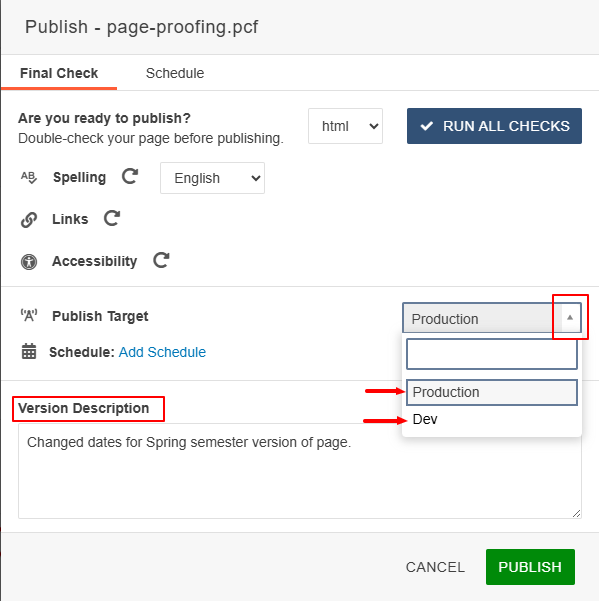
When you go to publish a page, after you run the page check you can select the Publish Target by using the drop-down arrow to publish to Dev and then to Production.
Adding in a Version Description will give you a good reference point for when you have a longer history of versions of the page.
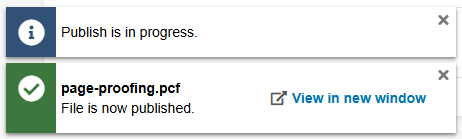
After you select "Dev" for the Publish Target, you will receive a small pop-up window in the bottom left side of your screen as the page is publishing and then again once the publish has completed. This will include a link to view the page in a new window.
If you accidentally close this without using the link to the "Dev" published page, you can also enter in the URL manually. The URL structure will match with what the file path would be once the page is live (published to Production) with the exception that it will start with "wwwdev" instead of "www."
That "wwwdev" URL is the web address that you can share with non-editors that have connected to the Ivanti Secure Access VPN so that they can view this page before it is finalized.
Remember, users might be using a screen reader or other accessibility tools to visit your site. Your site's visitors might also be on a different screen size than the one you are using to create your web pages.
When you publish to Dev, you'll be able to see how the live page would look in your browser, without the page being a live page yet.
In your browser, you can use the WAVE accessibility evaluation tool to review the page for review for accessibility.
Your web browser menu will have a "developer tools" option that will let you see how the page would appear on a variety of different screen sizes.
Publishing to Dev also creates a stored Version of your page. You can revert to past Versions of your page if you want to keep more than one version of your page to switch between, such as a spring and fall semester version of your page. Keeping Dev published versions of your page is also useful if you plan to make big edits to your page and want to have a backup version in case you make a mistake.
Publishing to Production is the default setting for publishing. Doing this will make the page a live web page. You should only publish to Production as the final step once you're sure that the page is ready to be live.
Having both a Dev and Production publish of your page in your page Version history is the best way to ensure that you have a saved version of your page to revert to when needed.

The University of Wyoming has earned its Research Level 1 (R1) status from the Carnegie Classification of Institutions of Higher Education, placing Wyoming's only four-year university with the top research universities in the United States.