
What to know about the CMS Environment
Always Work in Staging
Staging is the default view and the environment you should always edit in. Pages here carry a .pcf extension in the folder navigation view and these are the editable versions of your pages.
Production Is Read Only
Production shows only your live pages, listed with an .html extension. You can't check pages in or out from this view because no editing happens in Production. You can toggle to Production and Dev to grab their browser URLs, but avoid working in them.
Link Beyond Your Access
Having a separate production server means you can internally link to pages you don't have permission to edit, using the File Dependency Manager.
Working Across Environments
Let's walk through what each environment shows you and how to move between them.

In the folder navigation view, every page in Staging is listed with a .pcf extension.
This is your editable page inside Modern Campus CMS, and it's where all of your edits
happen.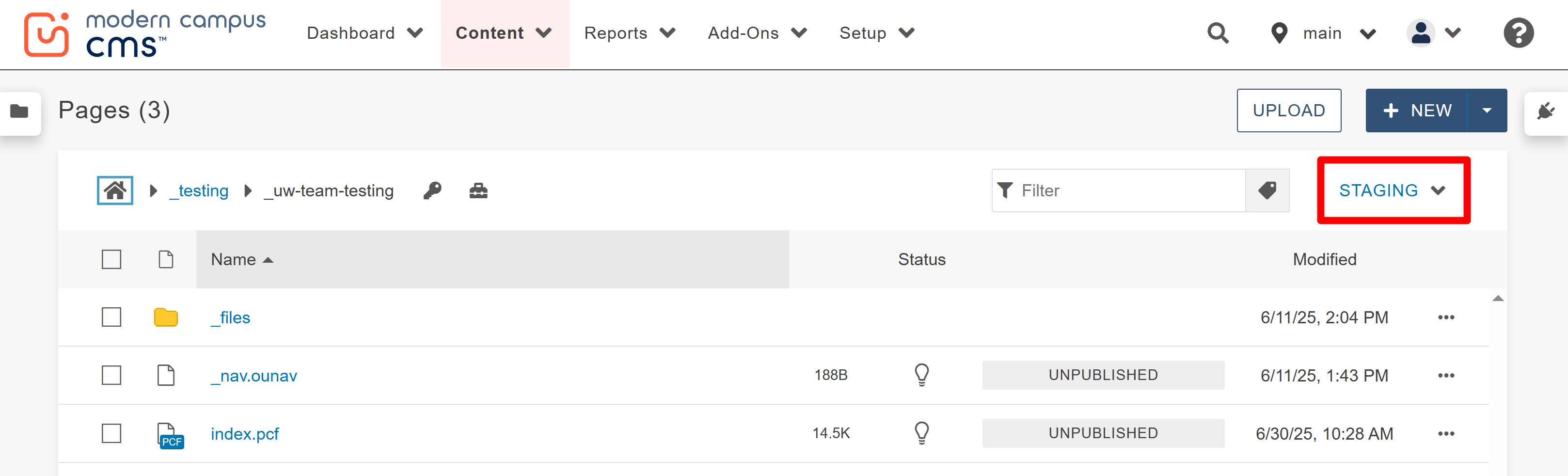
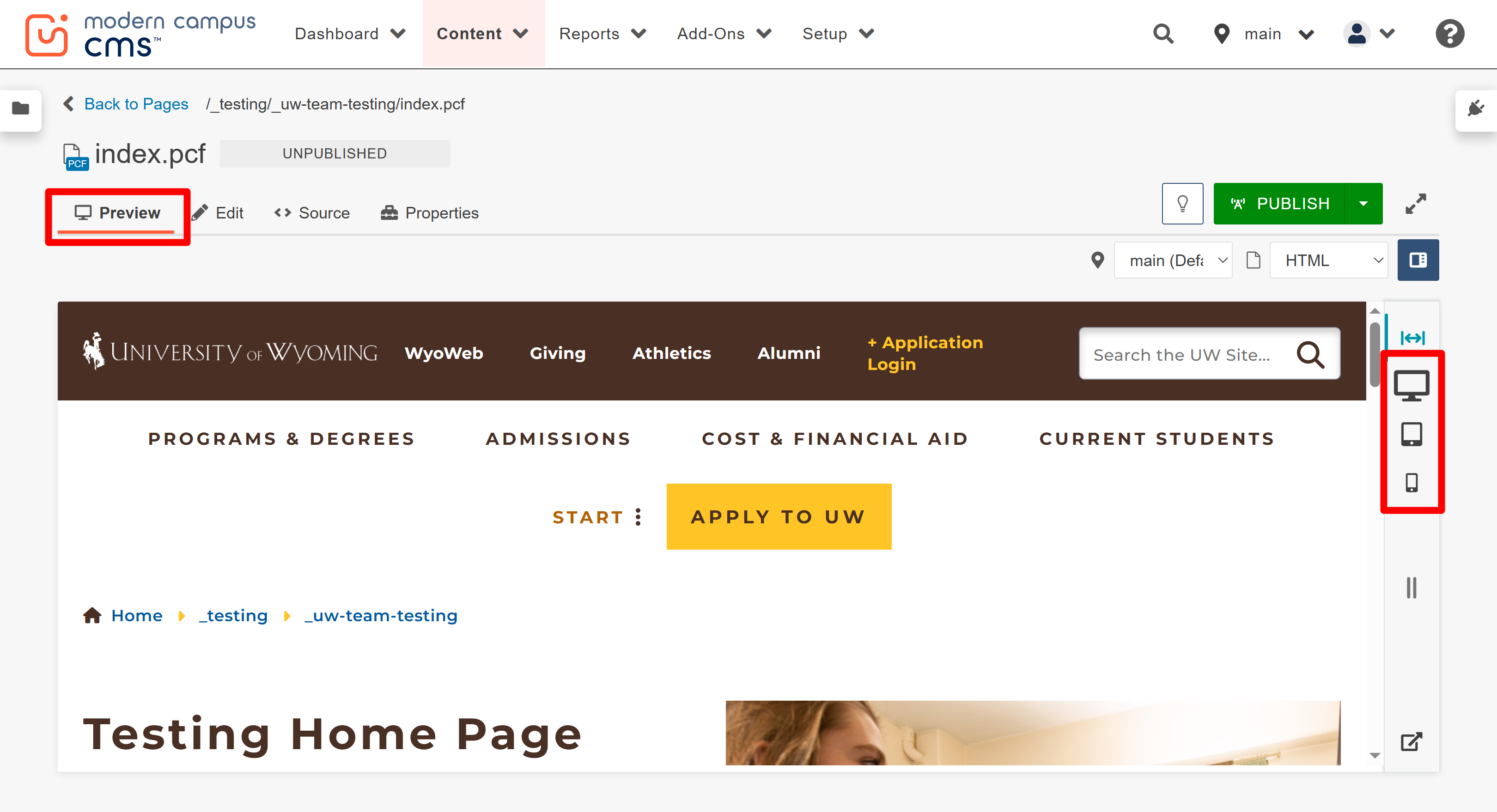
To see a draft of your page before it reaches the production server, use the Preview tab while editing. You can also switch between views to check how the page looks at different screen sizes.
Switch your environment to Dev in the folder navigation and all files that have been published to the development server will appear. Your page file names will end in .html instead of .pcf. Clicking on the file name will open the published page in a new browser tab. This is a live web page, but not as easily findable as a page published to Production.
Site editors should always publish their pages to both Dev and Production. Having a Dev publish of the page is useful for many reasons, such as:
- In Staging, having a Dev publish of a page will allow you to revert to that version of the page if you have accidentally made errors while editing.
- Publishing a page to Dev will give you a URL (web address) to share with colleagues that are not site editors for their review or approval.
- The Dev published page will let you view the live version of the page, which can then be used to review for accessibility, test appearance on different screen sizes, test links, etc.
Please note: You will need to be connected to VPN if off campus to view all Dev published pages.
Switch your environment to Production in the folder navigation and your pages will
end in .html instead. These are your live pages and only live pages and files appear
in this view. Notice you can't check pages in or out here, since no editing is possible
in Production. Clicking on the file name will open the live web page in a new browser
tab.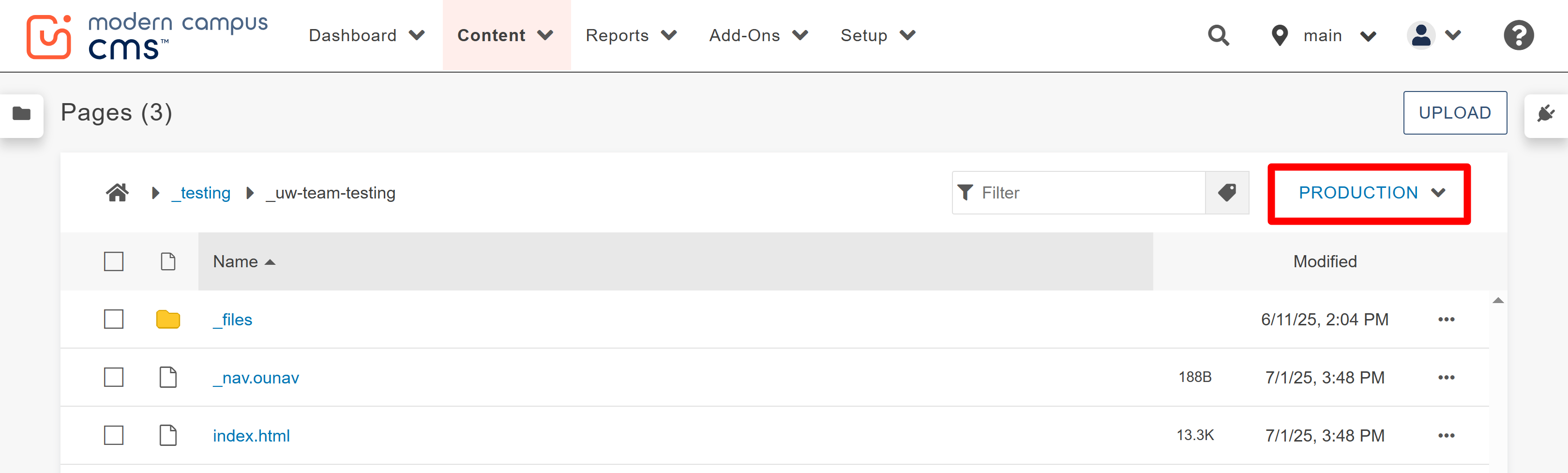

The University of Wyoming has earned its Research Level 1 (R1) status from the Carnegie Classification of Institutions of Higher Education, placing Wyoming's only four-year university with the top research universities in the United States.