
Editing an Image File in the CMS
This guide will cover resizing and cropping an image already uploaded into your files. Refer to other tutorial pages for uploading instructions.
Go to the file you want to edit by navigating through your site's folder and file selection.
Select the three dots that are to the right side of the file. Select EDIT and then
Image. 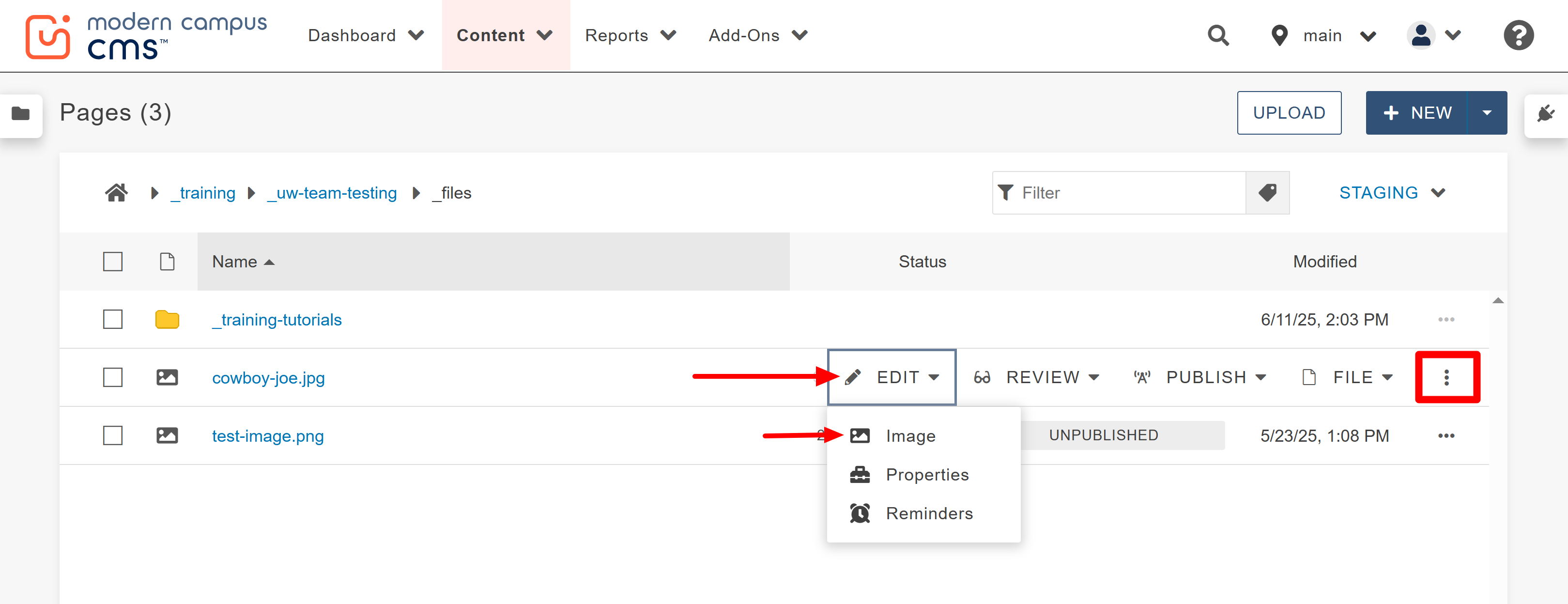
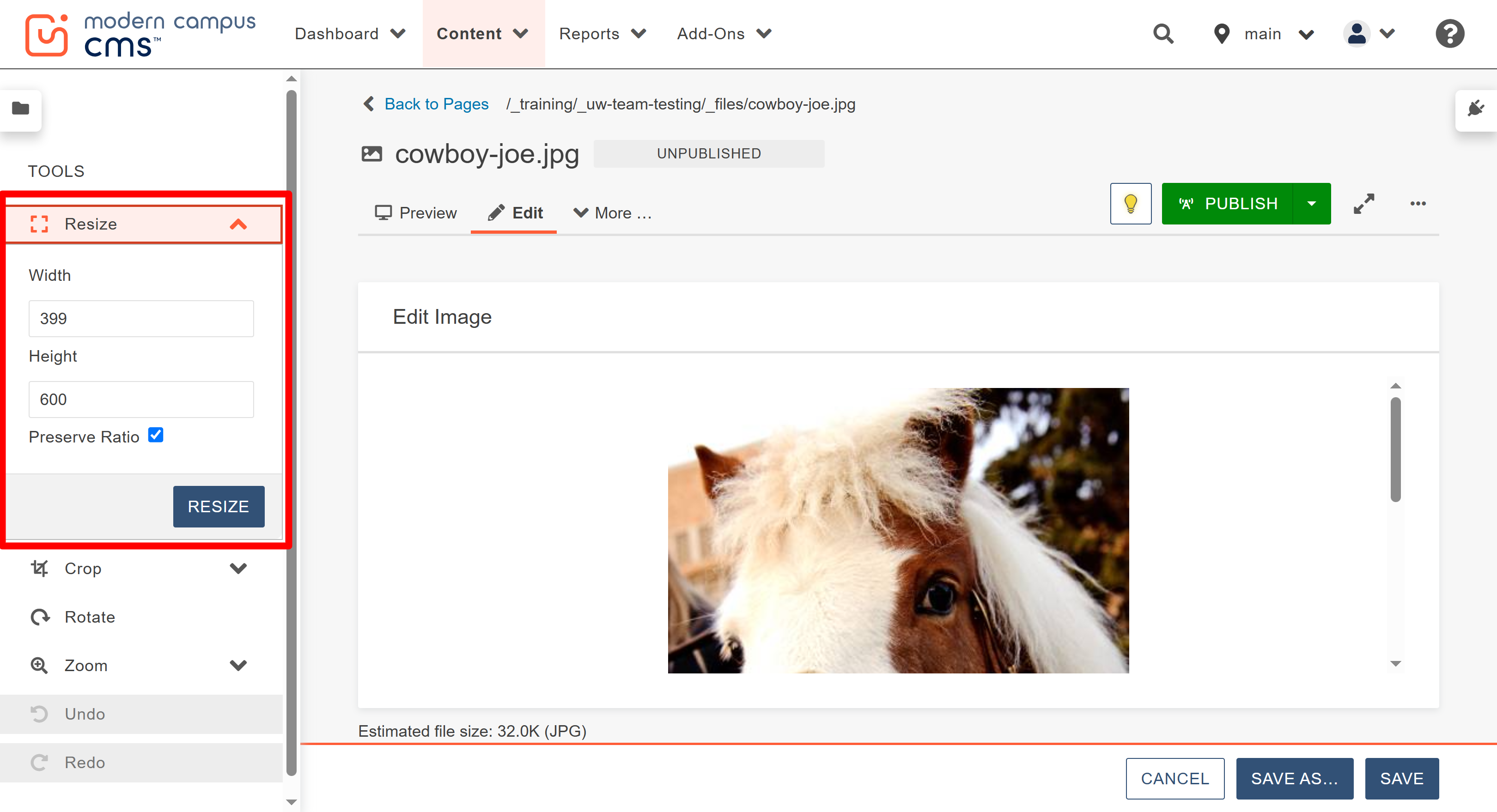
After selecting to edit the image, open the Resize section from the left side toolbar. The numbers displayed show the dimensions of the original image in pixels.
Enter your new width or height and always preserve the ratio to ensure that you do not stretch the image. Select the RESIZE button when you have the size you want.
If you want to change the aspect ratio or overall shape of the image, then you would want to crop the image rather than resize. The next section of this accordion has instructions on how to crop.
Note: When inserting an image on a page, you will have a chance to resize the image on the page. In that situation, you can resize the image in the page to be smaller than the actual file size but you can not make it larger. For more information on that, refer to the inserting an image in a page guide.
When you are done resizing the image, select SAVE at the bottom right side of the
screen and then republish the image.
Publish the file to both Production (also referred to as default or main) and Dev
from the "Publish Target" drop down in the Publish window that appears.
Note: To do this, repeat the publishing step twice and publish to the two different targets
for each time.
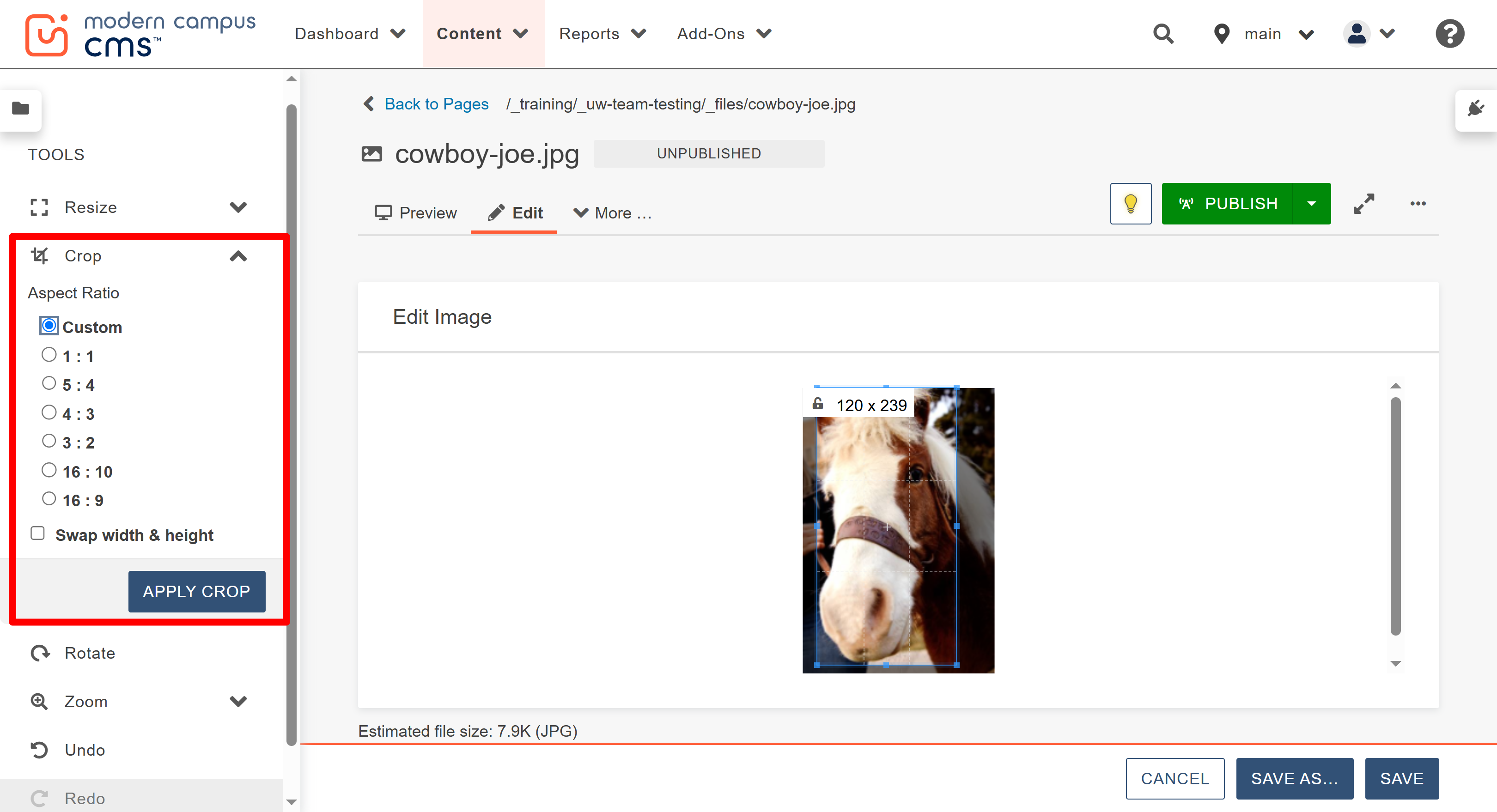
After selecting to edit the image, open the Crop section from the left side toolbar. You can choose one of the provided
aspect ratios and see the result on the image. You can also swap the width and height
on the aspect ratios or crop to a custom aspect ratio. If you want a different ratio,
select Custom and then on the image drag the cropping outline to the desired size.
When you are finished, select the Apply Crop button.
Note: The new size of image width x height in pixels is provided in the upper left corner
on the image.
When you are finished cropping, select SAVE at the bottom right side of the screen and republish the image using the PUBLISH button at the top of the page.
Note: Always remember to publish twice; once to the default, also seen as Production or main, and again to Dev.

The University of Wyoming has earned its Research Level 1 (R1) status from the Carnegie Classification of Institutions of Higher Education, placing Wyoming's only four-year university with the top research universities in the United States.