
What if I want to move a file or need a copy of my page or file?
To maintain the integrity of all site directories, site editors are not able to move, rename, or copy any folders, files or pages around their site. However, there are some instances where copying, moving or renaming your folder, file or page to another subfolder within your site can help manage and maintain a tidy site.
If you need to move a folder, page or file, rename a folder, page or file or copy a folder, page or file, you can request these actions from a CMS administrator by using the CMS Request Help Gadget. Please be sure to include details in your request explaining the need for which action and which files or folders would be involved. Also, please be sure that you do not have those files checked out. The CMS administrators will review your request and respond through Team Dynamix ticketing.
Recycling a File or Page
Moving a file or page to the Recycle Bin will automatically unpublish the contents from the Production and Dev servers along with removing it from Staging and removing its dependency ID tag.
Before you recycle a page, you must remove any referencing links to the file or you will create broken links in the CMS. These references are also called "subscribers."
Site editors should always check for subscribers of the file or page before moving it to the Recycle Bin. This will ensure that this action will not result in broken links on pages outside your directory and will let you know if you will need to update any pages in your directory where it is referenced.
When you go to recycle a file, you will receive an alert message if you try to recycle a file that has subscribers in either Production or Dev. You must remove all subscribing links in Production and Dev before you recycle a file.
Another way that you can check for subscribers is by utilizing your Gadgets. For more information, you can review this Dependency Tag Info Gadget tutorial.
Site editors can move their file to the Recycle Bin if it is no longer needed by locating the page or file in the folder navigation and checking the box to the far left of the file name. Along the top of the folder navigation an options menu will appear. Select move to Recycle Bin.
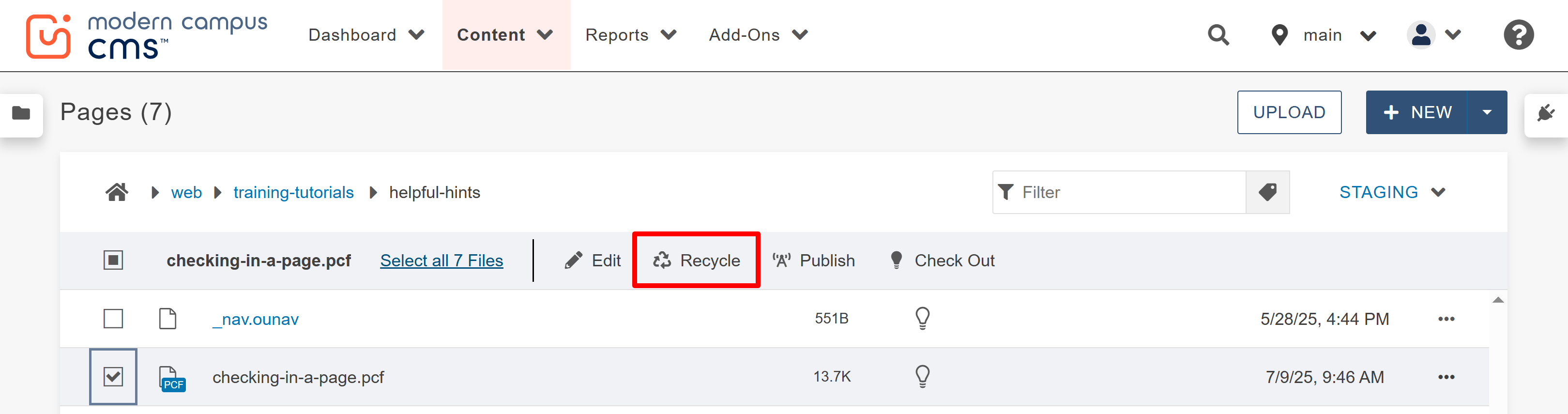
Contents in the Recycle Bin can be recovered for a short period of time by the site editor.
When you recycle a file, the dependency tag is permanently deleted. Then, if you restore the file from the recycle bin, it will go back to its original location and will have a new dependency tag assigned. So, as always, you'll need to remove any subscribing links before recycling to avoid broken links, and then once it is restored it will be treated as a new file with an "unpublished" status.
When restoring a file from the Recycle Bin, it can get tricky because every recycled file is shown. This means that you'll need to sort through the results a bit to find your file.
You can Filter the results by either your name or the start of the file path for the original location (i.e. /web/training-tutorials/) Also, because the recycle bin contains files from across the entire CMS, it will sometimes rename files, similar to how your computer's storage will sometimes add a number on files with the same name in the same location.
For example, you will find many "index" pages in the recycle bin, and if you're looking for an index page it might now have a number after it. This is why filtering by file path might be the most useful method to find your file. When it is restored, it will revert back to the original file location with the original file name of just "index."
Note: a file restored from the recycle bin will be treated as a new file on your site, with a new dependency tag and an unpublished status.

The University of Wyoming has earned its Research Level 1 (R1) status from the Carnegie Classification of Institutions of Higher Education, placing Wyoming's only four-year university with the top research universities in the United States.