
Important Tips for Creating a Form
Submission Versions
Every time a form is changed, it must be relaunched in the module which will create a new version (always within the same form). This will also create a new version of form submissions. Your submissions will always be saved in the same form, but each new version will always have its own set of submissions.
Set Your Access
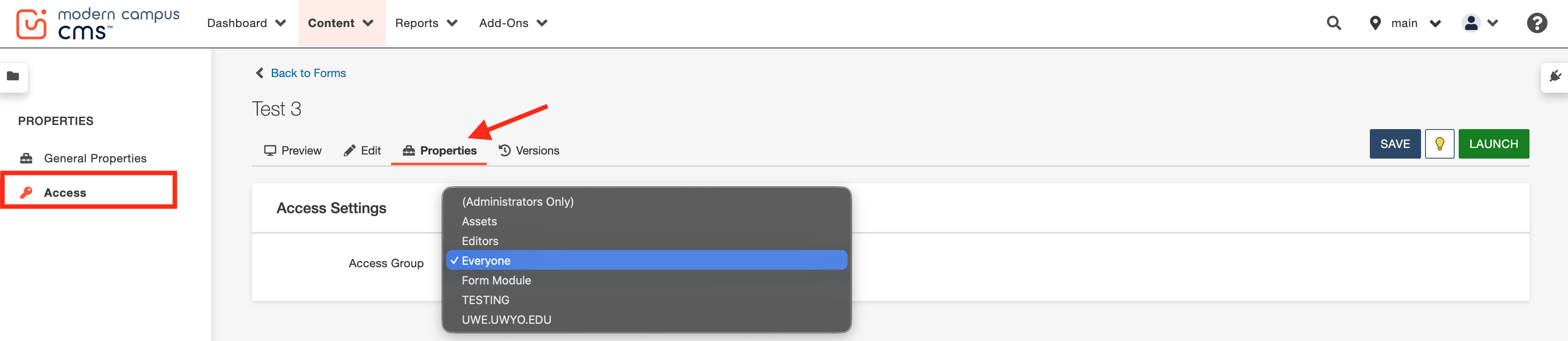
Form access must be set by the site editor inside Properties of the form. Be sure to select your site's access group to ensure your form cannot be edited by other users.
File Upload Limits
Forms contain the ability to allow visitors to upload a file in their submission. These files are limited to 5 MB. For this reason, accepting large files (such as video file submissions or PowerPoint presentations) should be avoided. A maximum of five (5) file upload fields can be added to your form.
Form Creation Video Tutorial
Creating a form in the Form Module is a simple user experience with "drag and drop" functionality to create your data fields. This tutorial contains some important features and tips for successful form creation.
Step-By-Step Instructions - Creating a Form
Let's cover the steps for creating a form and then placing it inside a page. We strongly encourage you to follow along with the forms video tutorial when building your first form.

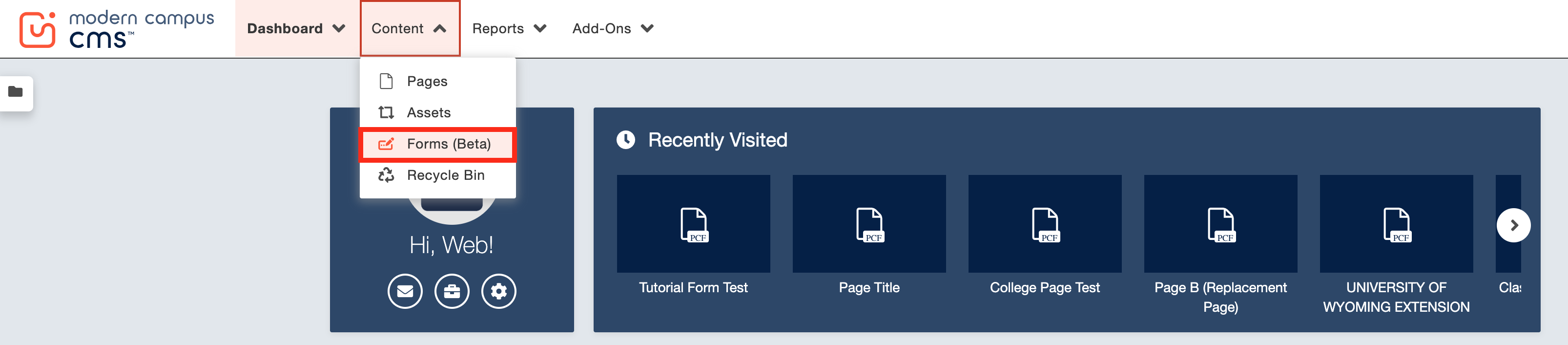
From the CMS dashboard, go to Content > Forms in the dropdown menu at the top of the screen.
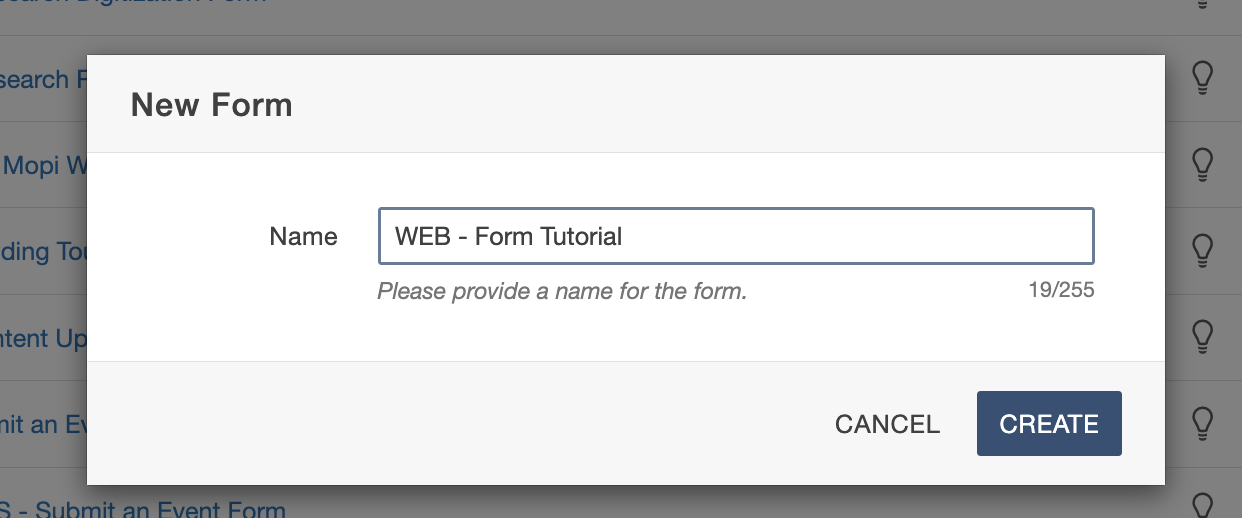
Then, click New, give your form a unique name using the SITE NAME - Form Name naming convention, and select Create to open the form builder.

Open the Properties tab and select Access. Choose the correct access group for your site so the form is connected to the right editing permissions. Site editors will only see the access groups they already have permission to use.
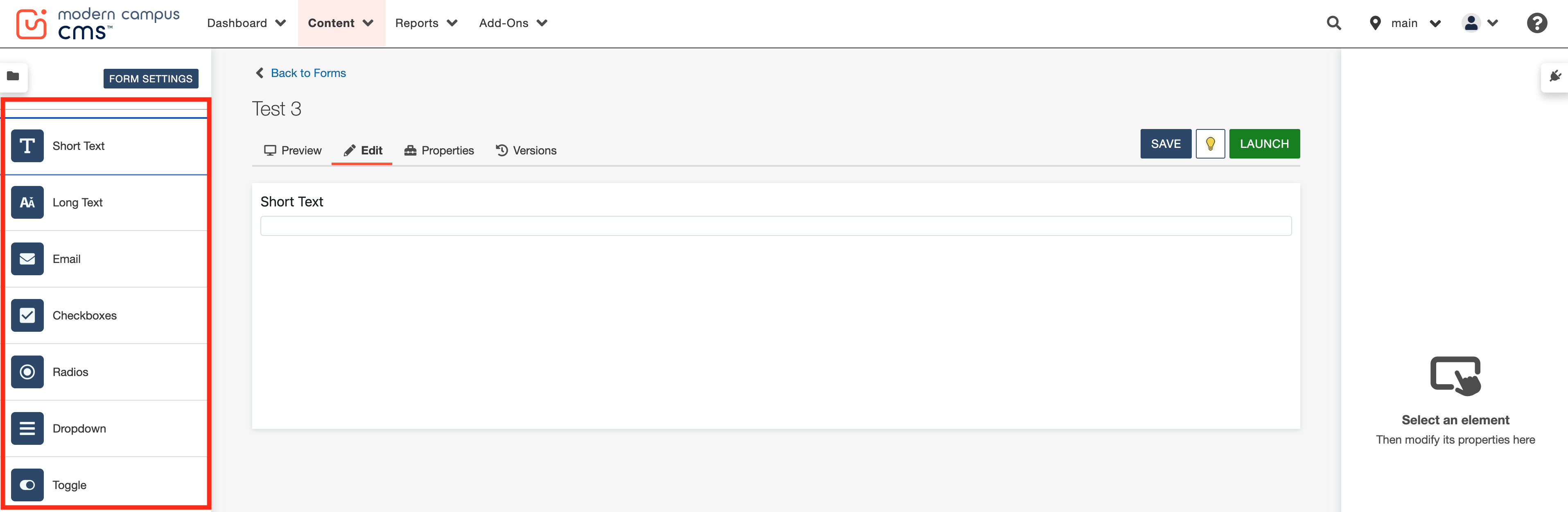
Drag and drop the fields you need into the builder. Make sure the blue "Insert Here"
line is visible before placing or moving elements.
FORM ELEMENTS AND SETTINGS GLOSSARY
Important Security Notice: CMS forms should never be used to collect sensitive data (such as social security numbers, etc.) as our system does not contain the appropriate certifications to house this type of information. This includes data related to regulations surrounding FERPA, HIPAA, PII or other sensitive data. If you require the need to collect sensitive details on a form, please visit the UW Qualtrics information page which is managed by the university's IT team.
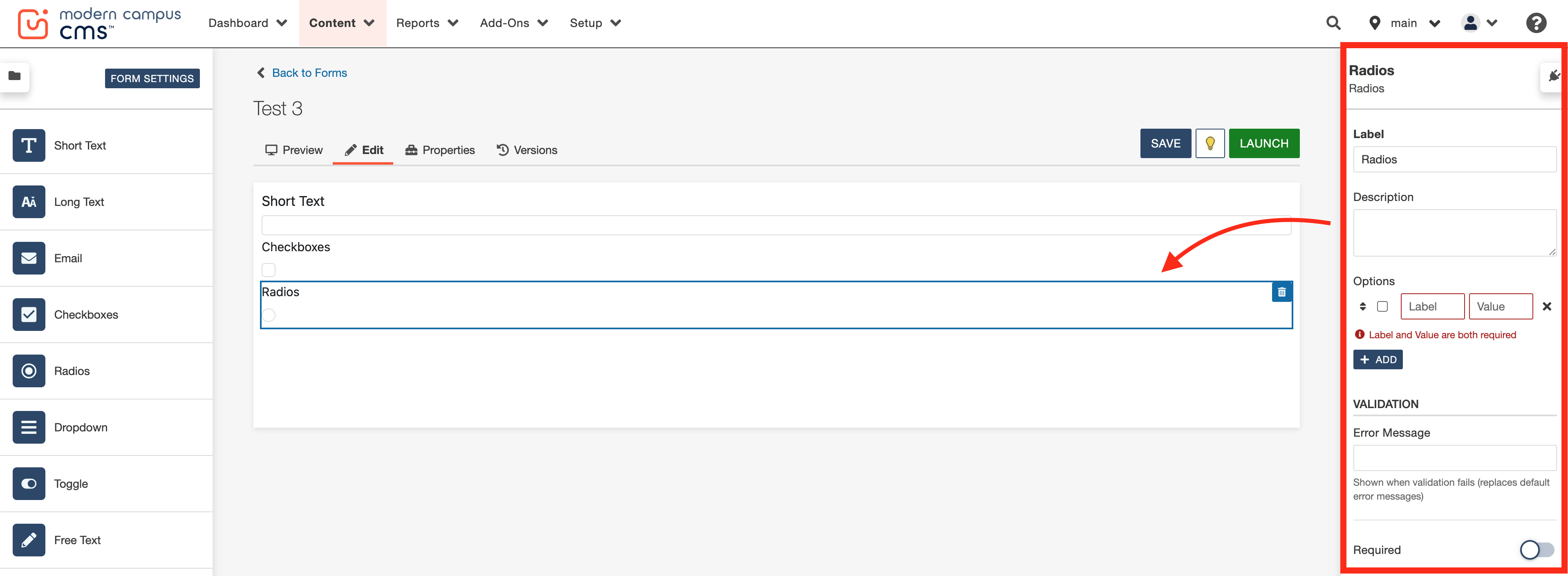
Click directly on any form element to edit its settings inside the panel that appears on the right-hands side of the screen. Add clear labels, helpful descriptions and mark fields as required when needed.
Adjust settings for items like placeholders, default values, check boxes and file uploads. For file upload fields, include helpful guidance such as allowed file types, file size limits and error messages.
Remember: CMS forms can only accept up to 5 MB file, so avoid video or large file submissions.
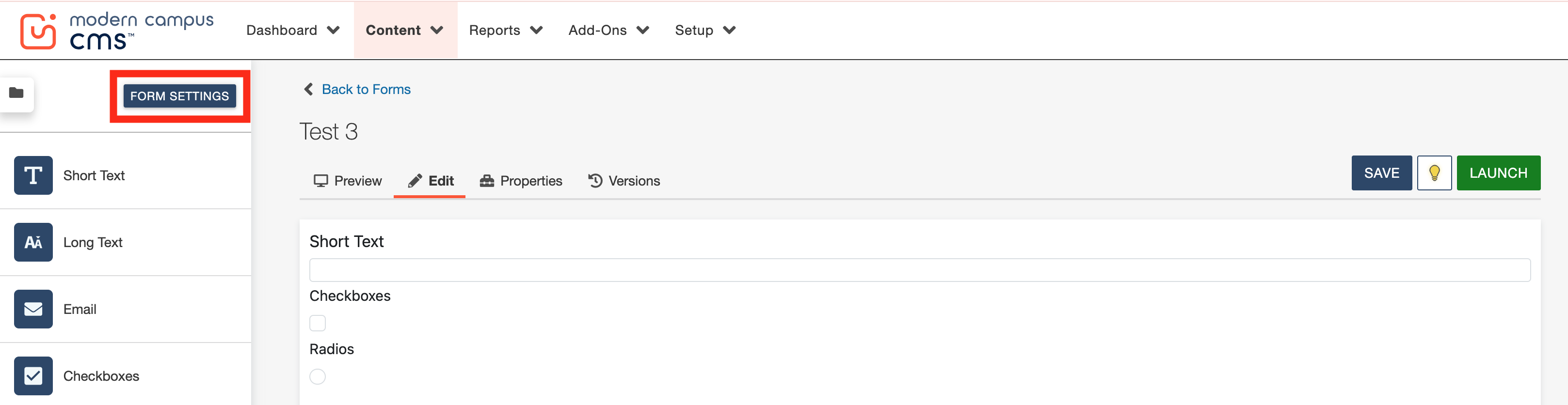
In the top left of the form module, select Form Settings.
Custom Style URL
Do not use this field. Global styling will be automatically applied to your forms. Do not click the "Download the starter CSS file"—this will serve no purpose to you.
Submissions Settings
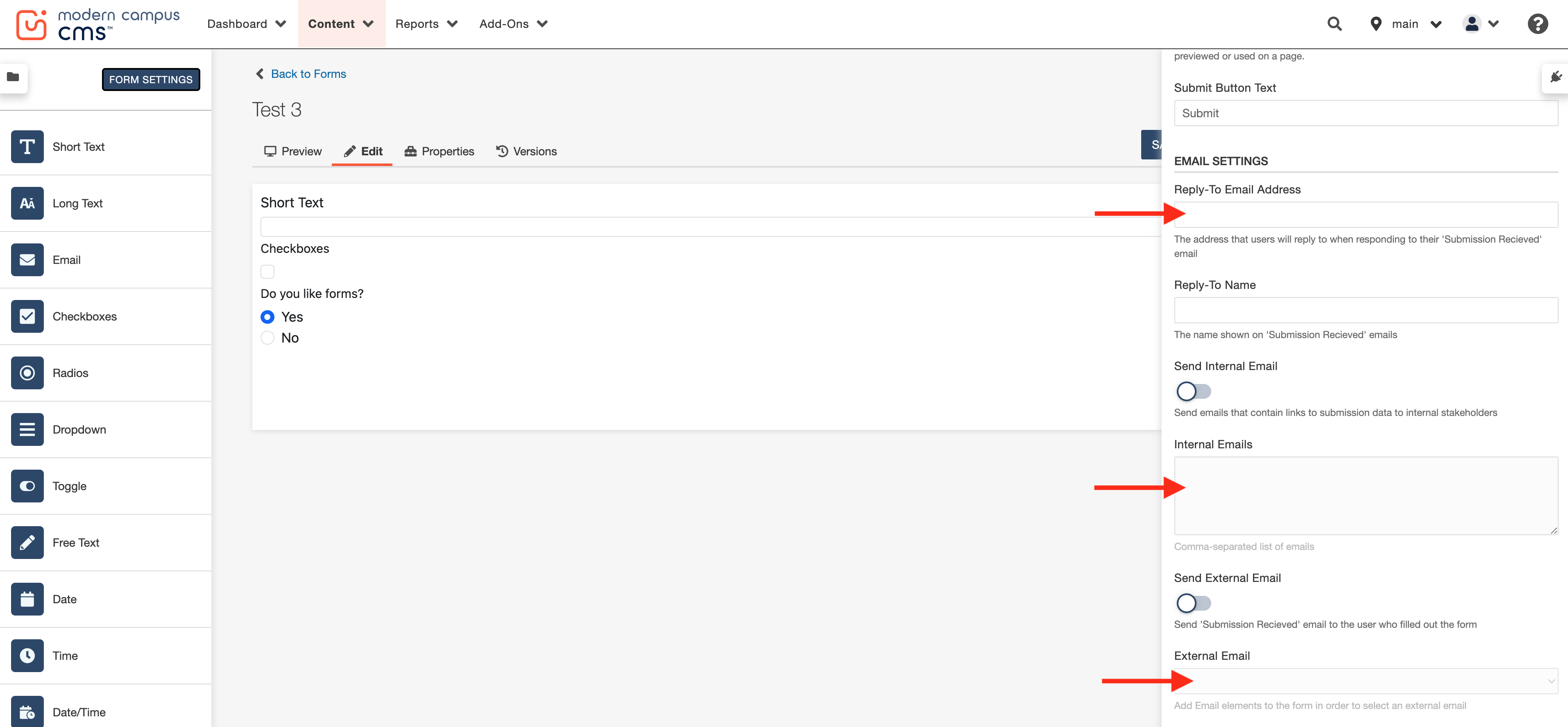
Choose what happens after submission, such as showing a success message or redirecting to another page. Then complete the email settings, including reply-to information, internal notifications, external confirmation emails and enabling a one-time download if needed.
Important Note: An external confirmation email can only be selected if an Email field is added to the form.
The one-time download link can be enabled only if the internal emails are present.
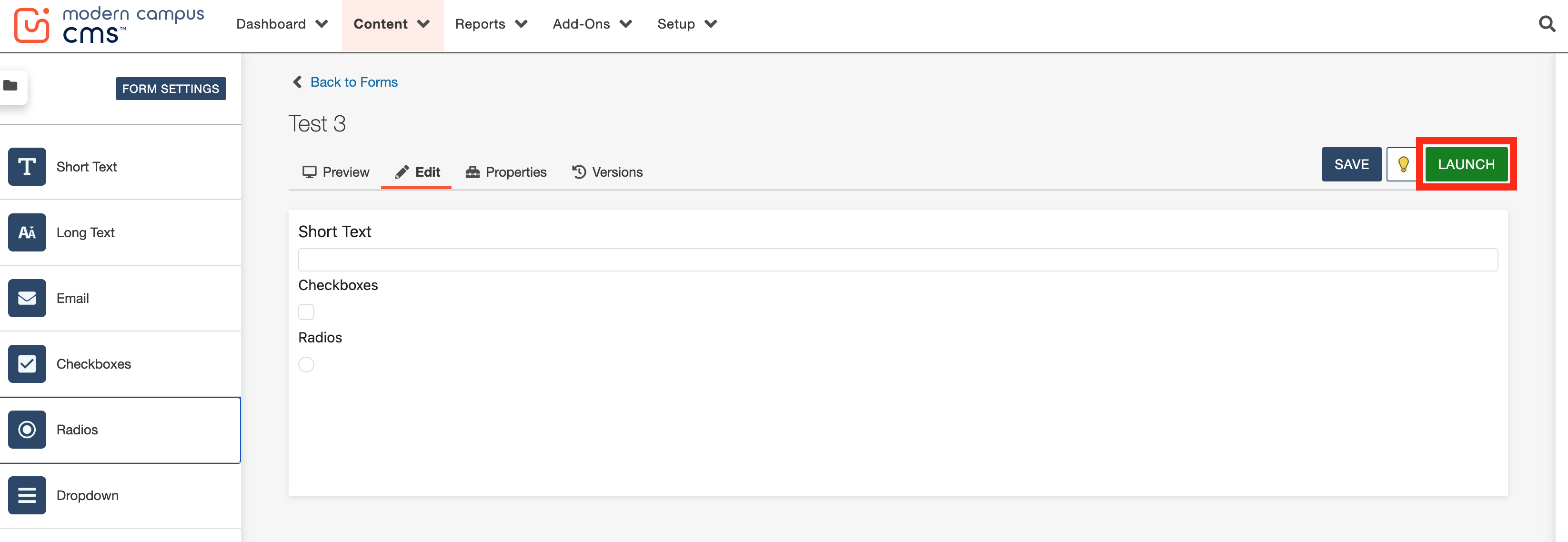
After making changes to form fields or settings, save your work and select the green Launch button. If your are editing a previously built form, this updates the live version that will be used on your page.
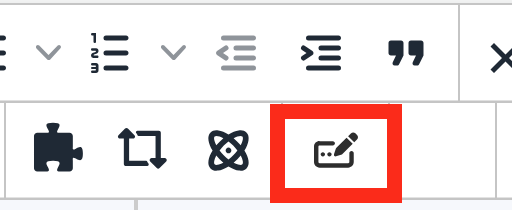
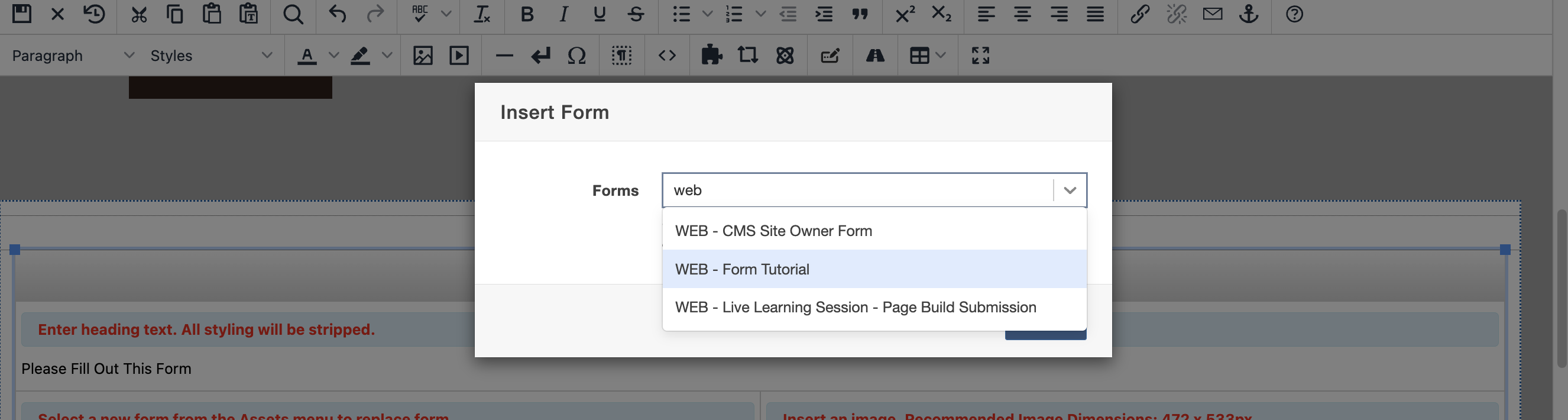
Open the page where you want the form to appear, place your cursor in the editable content area, and use the Insert Form icon (denoted as a pencil inside a rectangle icon) inside the WYSIWYG toolbar.
Tip: If you need a new form page, try using the Form template which is pre-formatted to display your forms in an attractive, simple layout.
You will then be prompted to select your form. Save and publish the page and test the form in Dev first.
Site editors can view all form submissions directly in the CMS by going to Content > Forms > Submissions. Submissions are grouped by the version of the form that was active when the submission was received, allowing you to view, search and export submissions for each form version.
With the recent Forms update, Modern Campus has improved the Form Module to now include
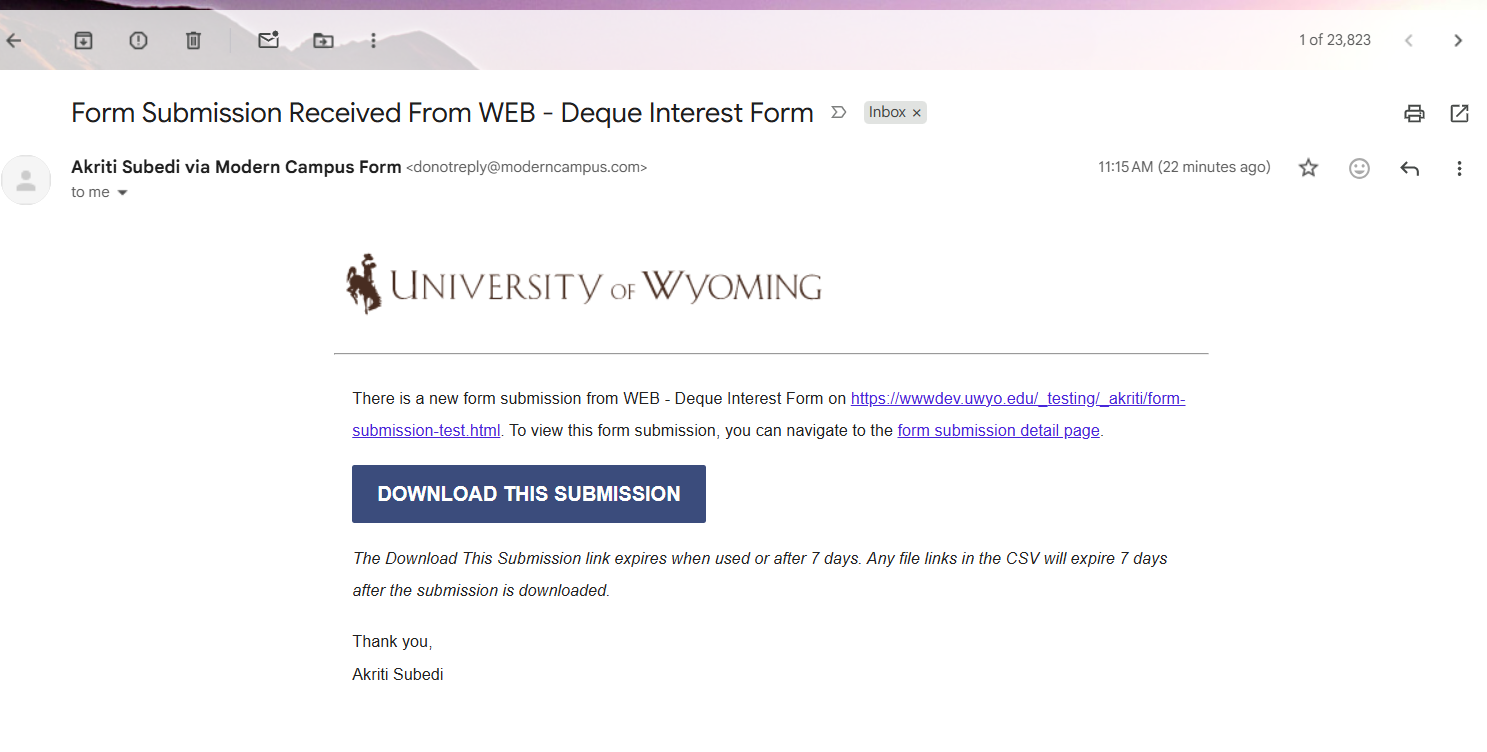
one-time download link in the submission email. When internal email notifications
are enabled, submission emails can include a unique, one-time download link that allows
recipients to download the submission data as a CSV file. This will be useful to form
recipients who do not have access to the CMS to view submissions.
A few things to note for the one-time download option:
- The download link is unique to each submission email.
- The CSV file contains the data for the individual submission associated with that email.
- The link can be used once and remains active for up to 7 days after the email is sent.
*IMPORTANT: Forms cannot be recovered once they have been deleted. Due to this, it
is important to follow these steps in order prior to form deletion*
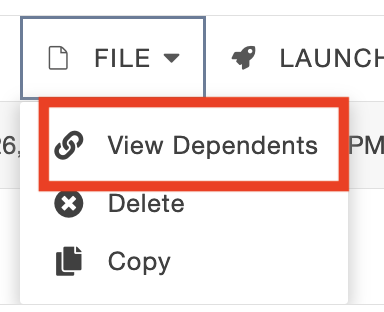
- Locate the form and select File > View Dependents
- Open up each page where the form is linked and remove it from the page(s). Make sure
to save and publish page(s) to Production and Dev.
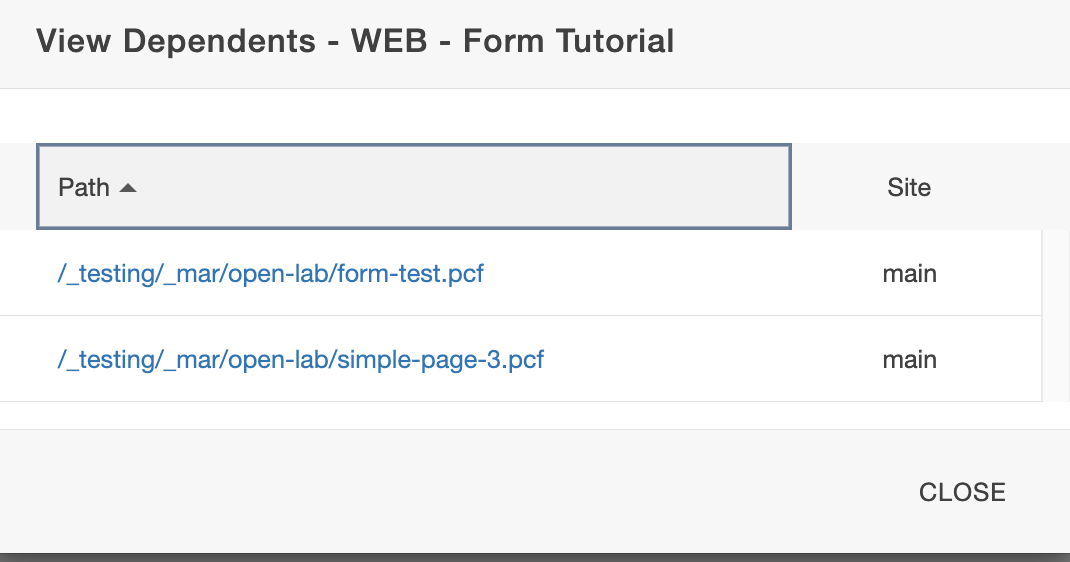
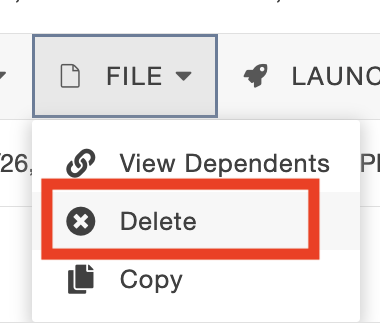
- Once it is confirmed the form is not linked to any pages. Navigate back to the form
module page and select File > Delete. Remember, this cannot be undone and forms will not be able to be recovered once deleted.

The University of Wyoming has earned its Research Level 1 (R1) status from the Carnegie Classification of Institutions of Higher Education, placing Wyoming's only four-year university with the top research universities in the United States.